Installation of Q-Commander
Follow the steps below to install the Q-Commander software:
- Plug the USB stick shipped with the device into your PC.
- Double-click the commander.msi installer file on the USB drive.
-
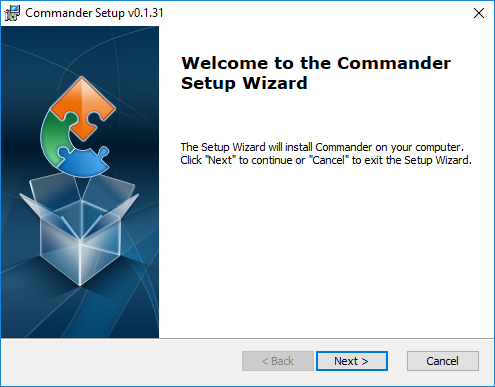
Click Next on the pop-up window
-
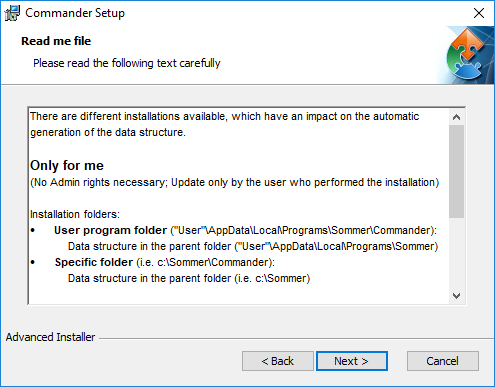
Read the instructions and click Next
-
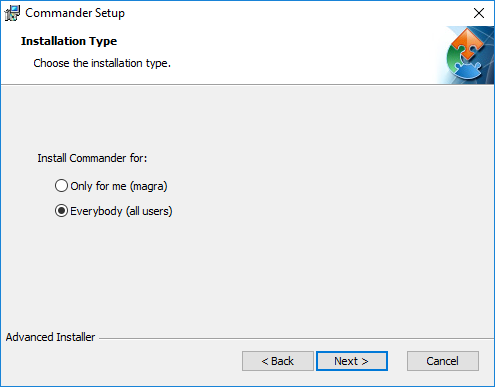
Select the installation type and click Next
 NOTE
NOTETwo installation types are available. Depending on the selection, the access rights and the folder structure differ:
Only for me
No admin rights are required. Updates are only available to the user who installed the software.
Installation folders:
- User program folder:
Users\User\AppData\Local\Programs\Sommer\Commander
Data structure:
Users\User\AppData\Local\Programs\Sommer - Specific folder (default):
C:\Sommer\Commander
Data structure (default):
C:\Sommer
Everybody
Admin rights are required. Updates may only be performed by system administrators.
Installation folders:
- Standard program folder:
Program Files (x86)\Sommer\Commander
Data structure:
Users\Public\Public documents\Sommer - Specific folder (default):
C:\Sommer\Commander
Data structure (default):
C:\Sommer
- User program folder:
-
Select the installation directory and click Next.

-
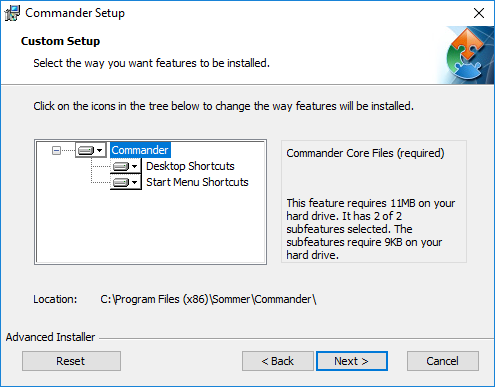
Select the features to be installed and click Next.
-
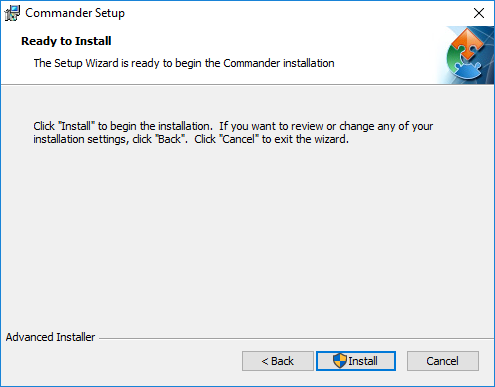
Click Install to start the installation.
-
Click Finish to complete the installation.