
Bluetooth
Perform the following steps to set up the communication between the MRL-7 and your PC:
- Install the Commander software on your PC.
- Make sure your PC has an internal Bluetooth or a Bluetooth dongle is connected.
- Start the Commander software.
- Make sure the MRL-7 is powered
-
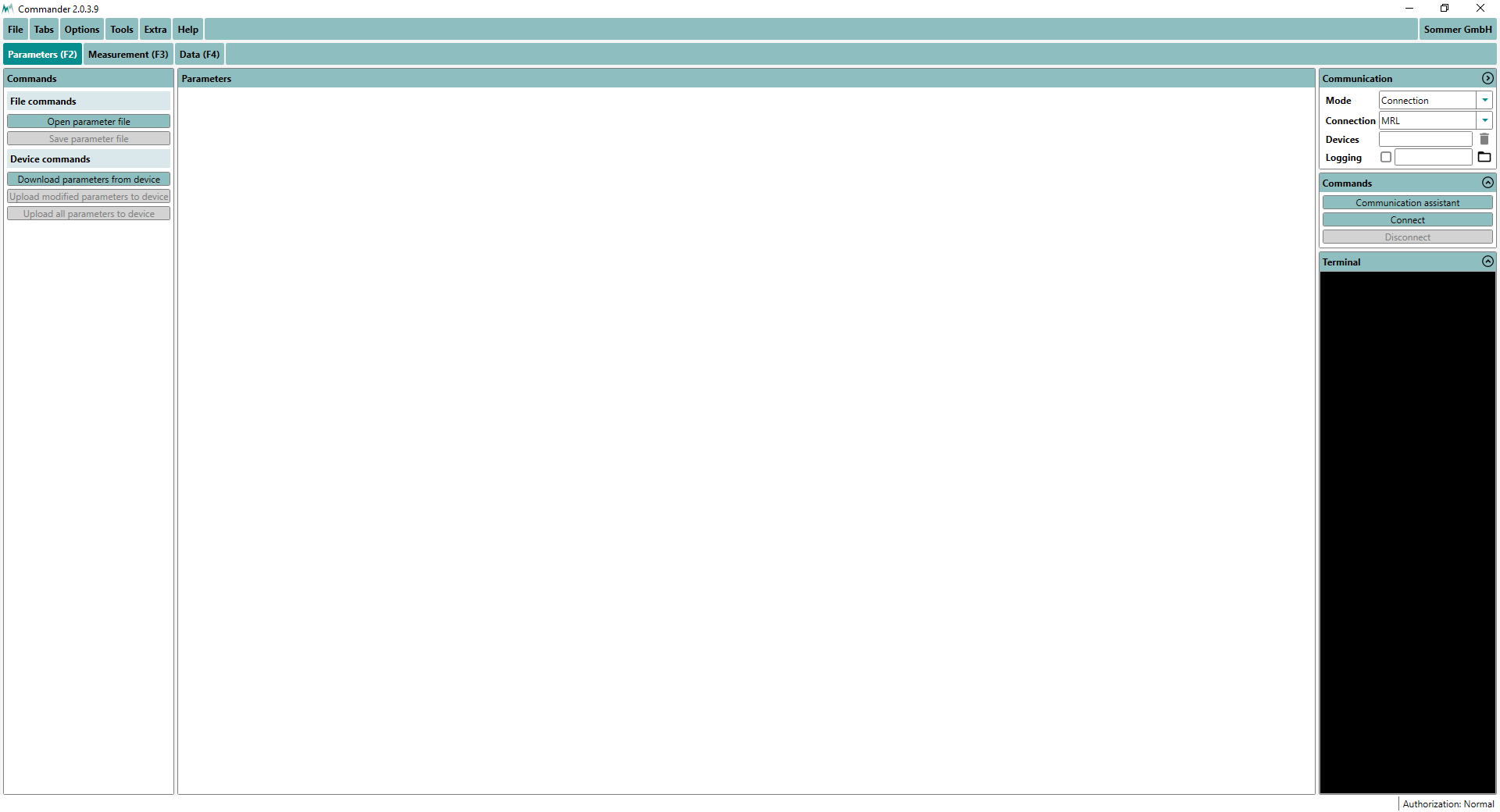
Click on Communication assistant on the right-hand side of the Commander window.
-
Select Bluetooth and press Next.
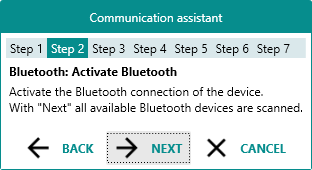
On the MRL-7 press the button DATA BT until the messagehold for BTand thenwaiting for BT no accessis displayed, press Next.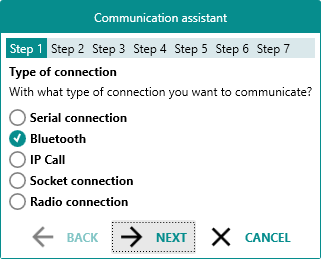
-
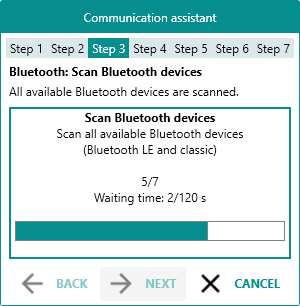
All available Bluetooth-devices are scanned ...
-
Select the device you want to connect to and click Next. The Bluetooth ID of your data logger is printed on a sticker on the MRL-7 housing.
The software now searches for devices connected to your data logger. This may take a few seconds.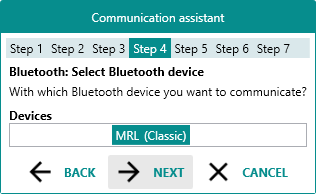
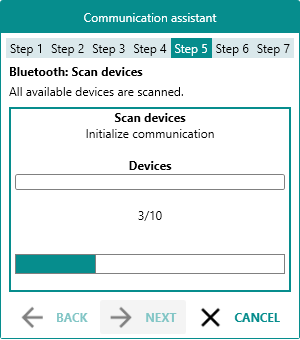
TIP The Bluetooth ID is also displayed in the list returned by the special function Device status.
-
Select if you want to create a new station. If yes, assign an appropriate name. If a station already exists, it will be recognized and automatically selected.
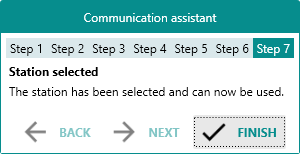
Click Finish. Upon completion, the newly created connection is displayed in the Communication section of the Commander.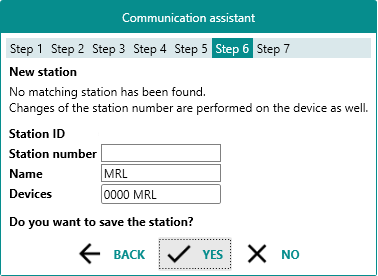
-
If the connection was successful a green icon is displayed at the top-right corner of the Commander window.
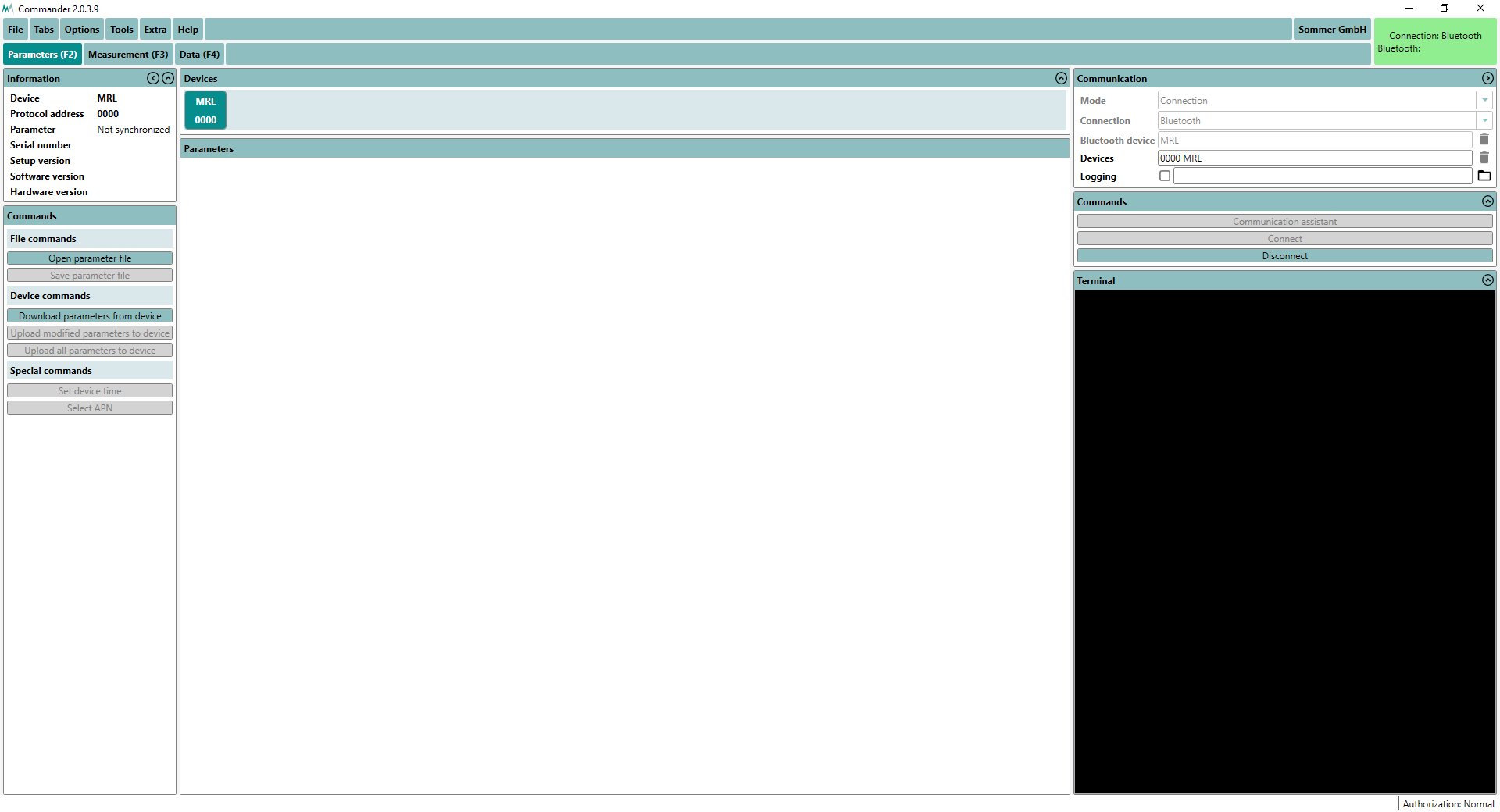
All configured connections can be viewed under the tab Connections (F8).
Alternatively, a connection can be configured manually; please consult the Commander manual for detailed instructions.